How do you scan and identify a baseball card? Take a clear photo, then confirm the year, product, card number, image, and parallel on the physical card. A likely scan match is a starting point; verify the exact issue before using a sale as a comparison.
Scan a baseball card and check the match
- Photograph one card clearly. Keep all corners in view, avoid glare from sleeves or foil, and let the camera focus before taking the photo.
- Compare the player and full set name. A familiar player or team is not enough to identify the issue. Topps flagship, Topps Chrome, and Bowman are different products.
- Read the number and edition details. Compare the printed card number, year, parallel treatment, autograph or relic details, and any serial stamp. Inspect the back when the front leaves a detail uncertain.
- Review the result and save the card. Treat a reference value as a research starting point. Use Add to Collection after checking the match, then organize the physical card so you can find it again.
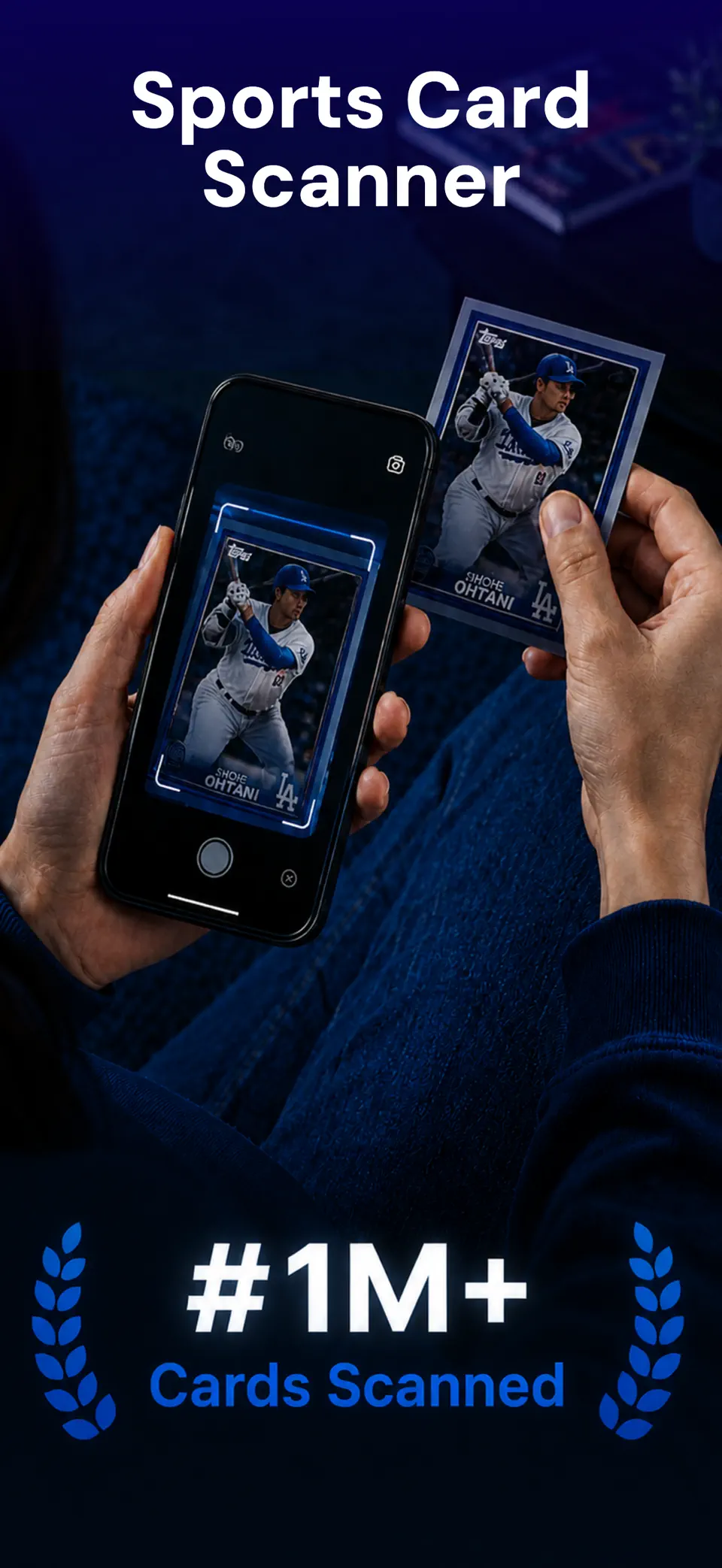
Look beyond the front photo.
A rookie logo, team badge, or recognizable pose can help you search. The exact set, year, number, image variation, and parallel still need to match.
If SnapCard returns a similar card, use the physical card's details to check it. Recognition depends on image quality and available information; no scanner can be assumed to recognize every issue correctly.
For general camera advice and recognition troubleshooting, follow how to scan sports cards with your iPhone.
Worked identification example: Ohtani, 2018 Topps #700
Heritage Auctions' lot 81684 identifies a 2018 Topps Shohei Ohtani pitching rookie, #700, graded PSA Gem Mint 10. Its description places the base issue in Topps Series 2. Those details form a useful identification checklist; the player name alone would leave too much uncertain.
| Check on your card | What the example identifies | Why it matters |
|---|---|---|
| Player and year | Shohei Ohtani · 2018 | The same player appears in many releases and seasons. |
| Product and card number | Topps Series 2 · #700 | Another set, Chrome issue, or card number needs its own comparison. |
| Image and edition | Pitching image · base issue | Do not assume an image variation, foil finish, or numbered parallel is interchangeable. |
| Grading status | PSA Gem Mint 10 | A raw copy or a different grade should not be priced from this slab's sale alone. |
This example explains how to read an outside auction description. It is not presented as a SnapCard recognition result. Confirm the photos and printed details of your own copy before treating any auction as a comparable sale.
Using a baseball card value scanner responsibly
After a scan, a reference value can help you decide what to research next. For a selling decision, compare recent completed sales of the exact issue and relevant condition. Asking prices, old transactions, and another parallel's price can give a misleading picture.
Our baseball and sports card value guide walks through dated auction records, buyer's premiums, and the limits of comparing two sales. The amounts in app previews are illustrative and are not evidence of current market value.
Keep your baseball collection organized
Save reviewed matches into collections that fit your goals: a player, a team, a set, or a physical storage box. Use a watchlist for cards you are researching and checklists for progress toward a set. See the sports card collection tracker workflow for a practical routine.
Baseball scanner questions
Can I scan vintage baseball cards?
You can try a clear photo and review the result. Age alone does not establish whether a card will be identified correctly. Confirm the printed details and use independent references when recognition is uncertain.
Does the app identify every parallel?
A scan can suggest a match, but small edition differences can be hard to distinguish. Check foil color, patterns, back text, and serial numbering yourself.
Is a scan a professional grade?
No. Photo-based condition information cannot guarantee a professional grading outcome. Read the grading company's criteria directly and inspect the card in person.
Where can I check price and compatibility?
The SnapCard App Store listing shows current compatibility, availability, and in-app purchase information.